
Resource
How to Connect RFID Reader to Computer (USB, Serial RS232 & Ethernet LAN Guide)
Step-by-step setup guide for connecting RFID readers to Windows and Linux. Covers USB HID Keyboard Wedge, Virtual COM drivers (FTDI/CP210x), and Ethernet LLRP setup.
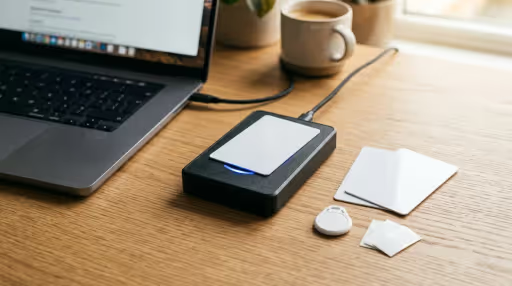
-
< 3 Minutes
USB Setup Time
plug-and-play USB HID keyboard wedge
-
USB, RS232, RJ45 LAN
Supported Interfaces
Windows 11/10, Linux, Android & macOS
-
HID, VCP (FTDI/CP210x), LLRP
Driver Protocols
desktop encoders to 8-port fixed portals
Overview of RFID Reader Interfaces: USB, Serial RS232, and Ethernet LAN
Connecting an RFID reader to a host PC or edge workstation depends on the reader hardware form factor and system architecture. RFID readers operate across four primary physical interfaces:
- USB HID Keyboard Wedge: The simplest plug-and-play method. Scanned tag EPCs type directly into any active software cursor (Excel, ERP input field, POS billing) without custom drivers.
- USB Virtual COM Port (VCP): Uses a USB-to-UART bridge (FTDI, Silicon Labs CP210x, or CH340) to emulate a serial port (
COM3,COM4), allowing C#, Python, or Node.js applications to send raw byte commands. - RS-232 / RS-485 Serial: Industrial standard for PLCs and legacy factory terminals using DB9 connectors, transmitting asynchronous serial data packets.
- Ethernet (RJ45 TCP/IP): Standard for fixed multi-port portal readers (e.g., Zebra FX9600, Impinj Speedway/R700) communicating over local networks via the standard Low Level Reader Protocol (LLRP v1.0.1) on TCP port 5084 or MQTT IoT connectors.
Connecting USB Desktop Readers: Driver Installation, HID vs Virtual COM Configuration
For compact desktop RFID readers (such as UHF desktop encoders or 13.56 MHz Mifare readers):
- Step 1: Plug the reader into a direct USB port (avoid unpowered USB hubs).
- Step 2 (HID Wedge Mode): If configured for Keyboard Wedge, Windows assigns standard USB HID drivers automatically. Open Notepad or an ERP form, swipe a tag over the antenna surface, and the hex EPC will type out with an automatic carriage return (Enter key).
- Step 3 (Virtual COM Mode): If writing custom software, check Windows Device Manager under Ports (COM & LPT). If a yellow warning icon appears, install the official FTDI Virtual COM Port (VCP) or Silicon Labs CP210x driver. Note the assigned port number (e.g.,
COM4). - Step 4 (Serial Settings): Configure your serial communication library with standard parameters: Baud Rate:
115200(or57600/9600depending on manufacturer), Data Bits:8, Parity:None, Stop Bits:1, Flow Control:None.
Configuring Industrial Fixed Readers over Ethernet: Static IP, Subnets & LLRP Sockets
Fixed readers deployed at warehouse dock doors connect to host computers or edge servers via Cat6 Ethernet cables and PoE+ switches:
- Subnet Matching: Connect the reader to your local switch. Default factory IPs are typically
192.168.1.100or assigned via DHCP. Set your computer's network adapter to the same subnet (e.g.,192.168.1.50, subnet mask255.255.255.0). - Web Admin Console: Open your browser and navigate to the reader's IP address (e.g.,
http://192.168.1.100) to log in to the management dashboard. - Assign Static IP: Change DHCP to a permanent static IP address matching your plant network IP scheme.
- Establish LLRP Socket: Enable standard Low Level Reader Protocol (LLRP) on TCP Port 5084. Connect via OpenRFID Middleware or Zebra Host SDK to start receiving high-speed asynchronous
RO_ACCESS_REPORTtag read streams.
Code Integration: C# .NET and Python 3 Connection Snippets
Below are minimal connection templates for reading tag data from a Virtual COM port:
Python 3 (pyserial):
C# .NET 8 (System.IO.Ports):
Troubleshooting Matrix: Common RFID Connection Errors & Solutions
Quick solutions for frequent reader communication issues:
| Problem | Root Cause | Solution |
|---|---|---|
| Yellow Exclamation in Device Manager | Missing USB-to-UART bridge driver | Download and run FTDI VCP or CP210x driver executable installer as Administrator. |
| No Data Output in Keyboard Wedge | Reader in VCP mode or ASCII output disabled | Flip bottom DIP switch from COM to HID mode, or send configuration command packet to enable HID emulation. |
| 'Access to Port COMx is Denied' | Another process locked the serial port | Close background serial monitors (PuTTY, RealTerm, VS Code Serial Monitor) holding the port open. |
| Reader Disconnects on Tag Scan | Insufficient USB port power | Plug reader directly into rear motherboard USB 3.0 port instead of unpowered front panel / keyboard hub. |
| Ethernet LLRP Socket Timeout (5084) | Windows Firewall blocking inbound TCP traffic | Add an inbound firewall rule allowing TCP Port 5084 on your edge server. |
Interactive RFID Engineering Tools & Calculators
Use our free interactive calculators and simulators to model RF physics, calculate link budgets, estimate ROI, and configure EPC tags.
RFID ROI & Payback Calculator
Calculate 12-month return on investment, shrinkage reduction, and labor hours saved for your facility.
RFID Project Cost Estimator
Estimate turnkey budget breakdown including readers, antennas, tags, cloud software, and on-site engineering.
Site Survey Checklist Generator
Generate a customized engineering checklist covering RF noise floors, power drops, and portal mounting requirements.
Need a custom how to connect rfid reader to computer (usb, serial rs232 & ethernet lan guide) deployment?
Every environment has distinct RF absorption and ERP sync constraints. Let's review your exact workflow and design an end-to-end blueprint.
Deployed hardware & software
Products & Hardware Deployed in This Solution
Discover the professional-grade RFID readers, tags, and custom integration software systems implemented in this deployment.
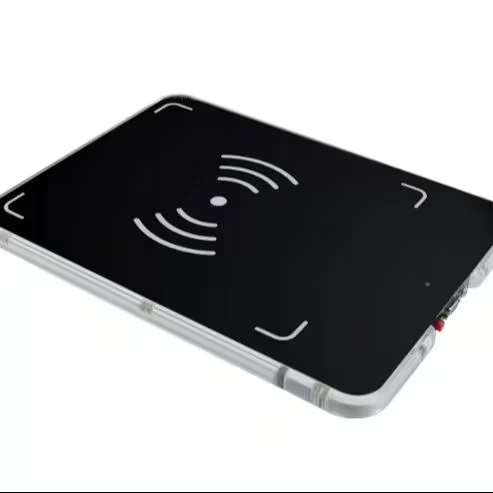
UHF Desktop RFID Reader and Writer USB Tag Programmer
Compact USB desktop UHF reader writer for workstation tag commissioning and registration.
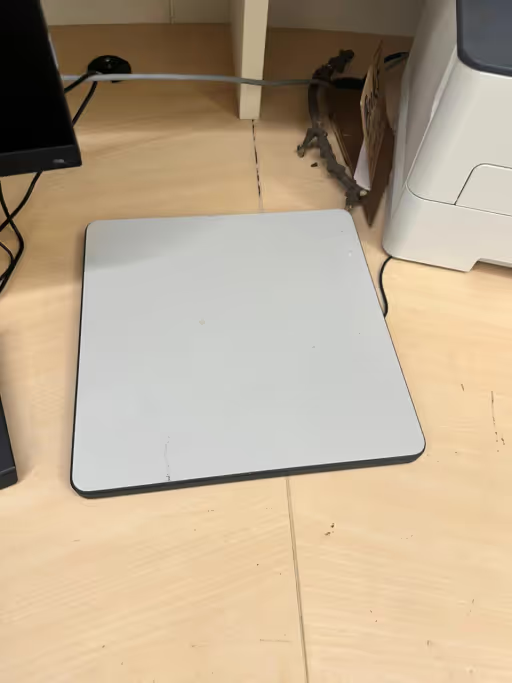
HF Desktop RFID Reader & Writer and USB Smart Card Scanner
13.56 MHz Mifare/NFC USB desktop card reader writer for access control and library issuance.
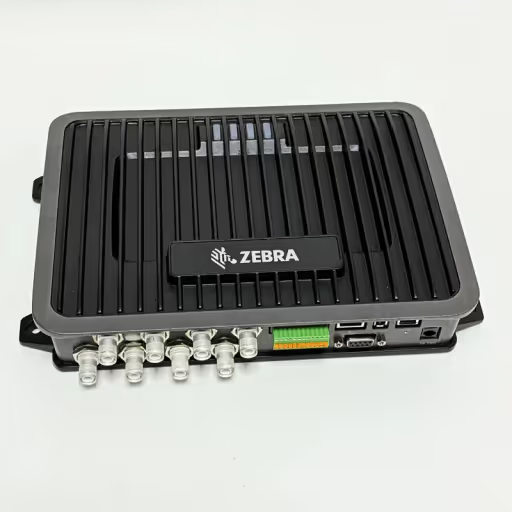
Zebra FX9600 4 port Fixed RFID Reader India
Industrial 4-port and 8-port fixed UHF RFID reader for high-throughput warehouse portals.