
UHF Integrated RFID Reader C# SDK & Guide
Production engineering manual and complete developer toolkit for all-in-one UHF Integrated Readers (PRD-UHF-INTEG-12M). Includes TCP/IP socket listeners, RS-232/RS-485 serial communication, Wiegand 26/34 access control output, onboard barrier relay control, and Indian WPC 865–867 MHz frequency tuning.
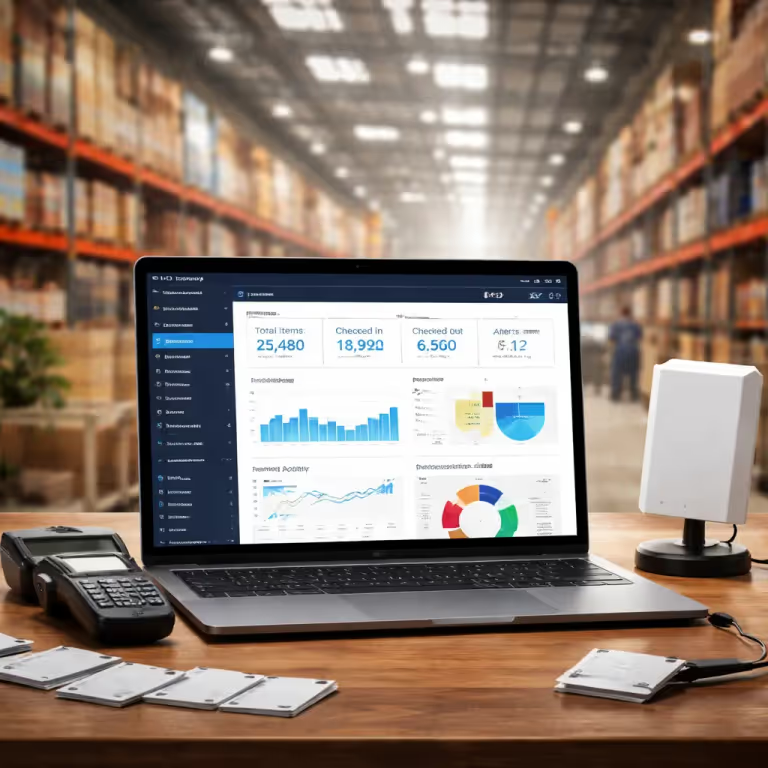
Supported Hardware Models & Field Architectures
The ADDeviceReader.dll assembly and RFIDDemo.exe test workbench are verified across industrial long-range readers and access control gateways:
PRD-UHF-INTEG-12M
Flagship all-in-one reader with integrated 12 dBi circular polarized antenna. 18-meter read distance, IP67 enclosure, and built-in dry contact barrier relay.
PRD-UHF-INTEG-8M
Compact 8 dBi circular polarized reader for single-lane parking barriers, weighing scale weighbridges, and security guard gatehouses.
Boom Barrier Access
Automated vehicle access control gate. Directly matches FASTag EPCs and pulses relay dry contacts (COM/NO) to open boom barriers without a PC.
Warehouse Dock Portals
Conveyor tunnel checkpoints and overhead forklift dock door portals for high-speed carton transit scanning at up to 60 km/h.
Software Architecture & DLL Reference Breakdown
The SDK distribution inside RFIDDemo3412_beta_Integrated_Reader.rar packages modular .NET assemblies engineered for both desktop utilities and headless background services:
Device Reader Wrapper
Exposes the primary high-level class ADSDK.Device.Reader. Handles protocol message framing, CRC generation, command sequencing, and event dispatching.
Protocol Engines
Contains protocol modules: Adpar (Integrated fixed readers), Adpir (Impinj Indy R2000 modules), and Adpaa (Parking Access Control).
Transport Layer HAL
Abstracts low-level physical I/O streams: TcpipBase for Ethernet sockets, ComBase for RS-232 / RS-485 serial ports, and HidBase for USB.
UDP Remote Configuration
Discovers readers on unknown subnets via UDP broadcast on port 39152. Allows programmatic reassignment of IP, subnet mask, gateway, and server/client modes.
Wi-Fi Module Manager
Manages 802.11 b/g/n wireless connectivity settings, SSID configuration, WPA2 encryption handshakes, and signal quality metrics for wireless reader installations.
Engineering Diagnostic GUI
Windows test bench application (v3.4.1.2 Beta) for real-time tag read rate testing, frequency hopping calibration, RF power tuning, Wiegand verification, and barrier relay toggling.
How to Integrate UHF Integrated Reader in C# .NET
Production code snippets targeting .NET 8 / .NET Framework 4.8 for Ethernet TCP/IP connection, frequency tuning, rapid EPC sweeps, and automated barrier relay pulses.
Project Setup & Assembly References
Extract RFIDDemo3412_beta_Integrated_Reader.rar and copy the assembly DLLs into your project's lib/ folder. Reference ADDeviceReader.dll, ADDevice.dll, and ADBases.dll in your .csproj:
<Project Sdk="Microsoft.NET.Sdk">
  <PropertyGroup>
    <OutputType>Exe</OutputType>
    <TargetFramework>net8.0-windows</TargetFramework>
    <PlatformTarget>AnyCPU</PlatformTarget>
    <Nullable>enable</Nullable>
  </PropertyGroup>

  <ItemGroup>
    <!-- Reference the core reader driver assemblies -->
    <Reference Include="ADDeviceReader">
      <HintPath>lib\ADDeviceReader.dll</HintPath>
      <Private>true</Private>
    </Reference>
    <Reference Include="ADDevice">
      <HintPath>lib\ADDevice.dll</HintPath>
      <Private>true</Private>
    </Reference>
    <Reference Include="ADBases">
      <HintPath>lib\ADBases.dll</HintPath>
      <Private>true</Private>
    </Reference>
    <Reference Include="ADNetConfig">
      <HintPath>lib\ADNetConfig.dll</HintPath>
      <Private>true</Private>
    </Reference>
  </ItemGroup>
</Project>TCP/IP Socket Connection & Health Probe
Connect to the integrated reader over industrial Ethernet using TcpipParameters. The default factory IP is 192.168.1.116 on TCP Port 49152:
using System;
using ADSDK.Device;
using ADSDK.Bases;

public class RfidConnectionManager
{
    private Reader _reader;

    public bool ConnectReader(string readerIp = "192.168.1.116", int port = 49152)
    {
        try
        {
            // Instantiate driver with Adpar (Integrated fixed reader protocol)
            _reader = new Reader();

            // Configure TCP/IP client parameters
            var tcpParams = new TcpipParameters
            {
                IPAddress = readerIp,
                Port = port,
                ConnectTimeout = 3000 // 3 seconds timeout
            };

            // Attempt TCP socket handshake
            bool isConnected = _reader.Connect(tcpParams);
            if (isConnected)
            {
                Console.WriteLine($"[INFO] Successfully connected to Integrated Reader at {readerIp}:{port}");

                // Query hardware model & firmware version
                string version = _reader.GetFirmwareVersion();
                Console.WriteLine($"[INFO] Reader Firmware Version: {version}");
                return true;
            }

            Console.WriteLine($"[ERROR] Connection refused by reader at {readerIp}:{port}");
            return false;
        }
        catch (Exception ex)
        {
            Console.WriteLine($"[EXCEPTION] Socket connection failed: {ex.Message}");
            return false;
        }
    }
}RF Power Tuning & Indian WPC 865–867 MHz Frequency
Calibrate RF transmission power between +10 dBm and +30 dBm to set read distance. Set frequency region to Indian WPC (or US FCC / EU ETSI) to comply with local RF regulations:
public void ConfigureRfParameters(Reader reader, int powerDbm = 30)
{
    // 1. Set RF Transmission Power (+10 dBm to +30 dBm)
    // 30 dBm = 18m max vehicle range; 20 dBm = 5m calibrated parking lane
    bool powerSet = reader.SetTxPower(powerDbm);
    if (powerSet)
    {
        Console.WriteLine($"[INFO] RF Power successfully set to {powerDbm} dBm.");
    }

    // 2. Set Indian WPC Frequency Hopping (865.0 MHz - 867.0 MHz)
    // Region code 3 = Indian WPC Band (Channels 865.1, 865.7, 866.3, 866.9 MHz)
    bool regionSet = reader.SetRegion(3);
    if (regionSet)
    {
        Console.WriteLine("[INFO] Frequency band configured to Indian WPC ETA (865–867 MHz).");
    }

    // 3. Configure Single-Tag Inventory mode (Fast response for boom barriers)
    // Mode 0 = Fast single tag inventory; Mode 1 = Multi-tag anti-collision
    reader.SetWorkMode(0);
}Continuous EPC Gen2 Tag Sweeps & Debounce Filter
Continuously poll incoming vehicle FASTags or carton RFID tags using Identify6C, with an in-memory sliding window debounce cache to avoid duplicate event firing:
using System;
using System.Collections.Concurrent;
using System.Threading;
using System.Threading.Tasks;
using ADSDK.Device;

public class TagInventoryService
{
    private readonly ConcurrentDictionary<string, DateTime> _seenTags = new();
    private readonly TimeSpan _debounceWindow = TimeSpan.FromSeconds(3);

    public async Task StartInventoryLoopAsync(Reader reader, Action<string, int> onTagDetected, CancellationToken ct)
    {
        Console.WriteLine("[INFO] Starting continuous 6C tag inventory stream...");

        while (!ct.IsCancellationRequested)
        {
            try
            {
                // Execute EPC Gen2 inventory sweep
                var tagReport = reader.Identify6C();
                if (tagReport != null && tagReport.TagCount > 0)
                {
                    foreach (var tag in tagReport.Tags)
                    {
                        string epcHex = tag.EpcString;
                        int rssi = tag.Rssi;

                        // Check debounce window to avoid spamming boom barrier
                        DateTime now = DateTime.UtcNow;
                        if (_seenTags.TryGetValue(epcHex, out DateTime lastSeen))
                        {
                            if (now - lastSeen < _debounceWindow)
                                continue; // Skip duplicate within debounce TTL
                        }

                        _seenTags[epcHex] = now;

                        // Fire event callback for business logic
                        onTagDetected?.Invoke(epcHex, rssi);
                    }
                }
            }
            catch (Exception ex)
            {
                Console.WriteLine($"[WARN] Inventory sweep warning: {ex.Message}");
            }

            // Yield thread for 30ms (~33 sweeps per second)
            await Task.Delay(30, ct);
        }
    }
}Automated Boom Barrier Relay & Access Control Trigger
When an authorized vehicle or truck is matched in your database, actuate the onboard dry contact relay (SetIOMode) to send a 1,000ms open signal directly to the boom barrier gate controller:
public class BoomBarrierController
{
    private readonly Reader _reader;

    public BoomBarrierController(Reader reader)
    {
        _reader = reader;
    }

    public async Task TriggerBarrierOpenAsync(string vehicleEpc, int pulseDurationMs = 1000)
    {
        Console.WriteLine($"[ACCESS GRANTED] Vehicle EPC {vehicleEpc} authorized. Triggering Barrier Relay...");

        try
        {
            // Close relay contact (Relay Port 1 = Active / High)
            // Pins COM and NO are bridged, completing the barrier open circuit
            _reader.SetIOMode(relayId: 1, state: 1);

            // Hold open pulse for specified duration (typically 1000ms)
            await Task.Delay(pulseDurationMs);

            // Release relay contact (Relay Port 1 = Inactive / Low)
            _reader.SetIOMode(relayId: 1, state: 0);

            Console.WriteLine("[INFO] Relay returned to open state. Boom barrier cycle complete.");
        }
        catch (Exception ex)
        {
            Console.WriteLine($"[CRITICAL] Failed to pulse barrier relay: {ex.Message}");
        }
    }
}Field Wiring & Physical Interface Pinout Guide
The UHF Integrated Reader features a weather-sealed multicore cable breakout. Follow this standardized color-code matrix when connecting power, serial lines, Wiegand access panels, and boom barrier controllers:
| Wire Color | Signal Designation | Electrical Specification | Field Destination |
|---|---|---|---|
| Red | VCC (+12V DC) | +12V DC ± 5%, 3.0A Regulated | Power supply positive terminal |
| Black | GND (Ground) | 0V DC Common Ground Reference | Power supply ground & shield |
| Green | Wiegand Data 0 (WD0) | TTL 5V Pulse, 100μs width | Access controller WG Data 0 input |
| White | Wiegand Data 1 (WD1) | TTL 5V Pulse, 100μs width | Access controller WG Data 1 input |
| Yellow | RS-485 485A+ / RS-232 TXD | Differential A line or RS232 Transmit | Industrial PLC or COM Serial Port |
| Blue | RS-485 485B- / RS-232 RXD | Differential B line or RS232 Receive | Industrial PLC or COM Serial Port |
| Purple | Relay COM (Common) | Dry contact, max 30V DC / 2A | Boom barrier controller common terminal |
| Gray | Relay NO (Normally Open) | Dry contact, closes during trigger | Boom barrier controller push-button input |
| RJ45 | 10/100M Ethernet TCP/IP | IEEE 802.3 Ethernet, Port 49152 | Network switch, Edge gateway, or Host PC |
Frequently Asked Technical Questions
Solutions to real-world integration challenges gathered from automated vehicle access, highway tolling, and warehouse dock portal deployments across India:
What is the default IP address, subnet mask, and TCP communication port for the Integrated RFID Reader?
How do you discover or reset the reader IP address if it was lost or configured to an unknown subnet?
Can the Integrated UHF Reader open a parking boom barrier automatically without a host computer running 24/7?
How do you wire and configure Wiegand 26 and Wiegand 34 outputs for access control panels?
How do you prevent the reader from scanning vehicles in adjacent parking lanes or false triggering?
How do you configure the reader for Indian WPC 865–867 MHz frequency compliance?
How do you integrate this reader with enterprise ERP systems like SAP S/4HANA or Tally Prime?
Deploying Parking Boom Barriers or Dock Portals?
Our engineering team delivers pre-configured IP67 Integrated Readers, high-gain mounting poles, certified FASTag vehicle stickers, and production edge middleware connecting directly to SAP S/4HANA and Tally Prime.